Ticket search
Plumsail HelpDesk has a search function that allows users to quickly find tickets within the helpdesk database.
Start the search
To start the search, type your request in the search field:

HelpDesk shows matching tickets with a short summary for each.
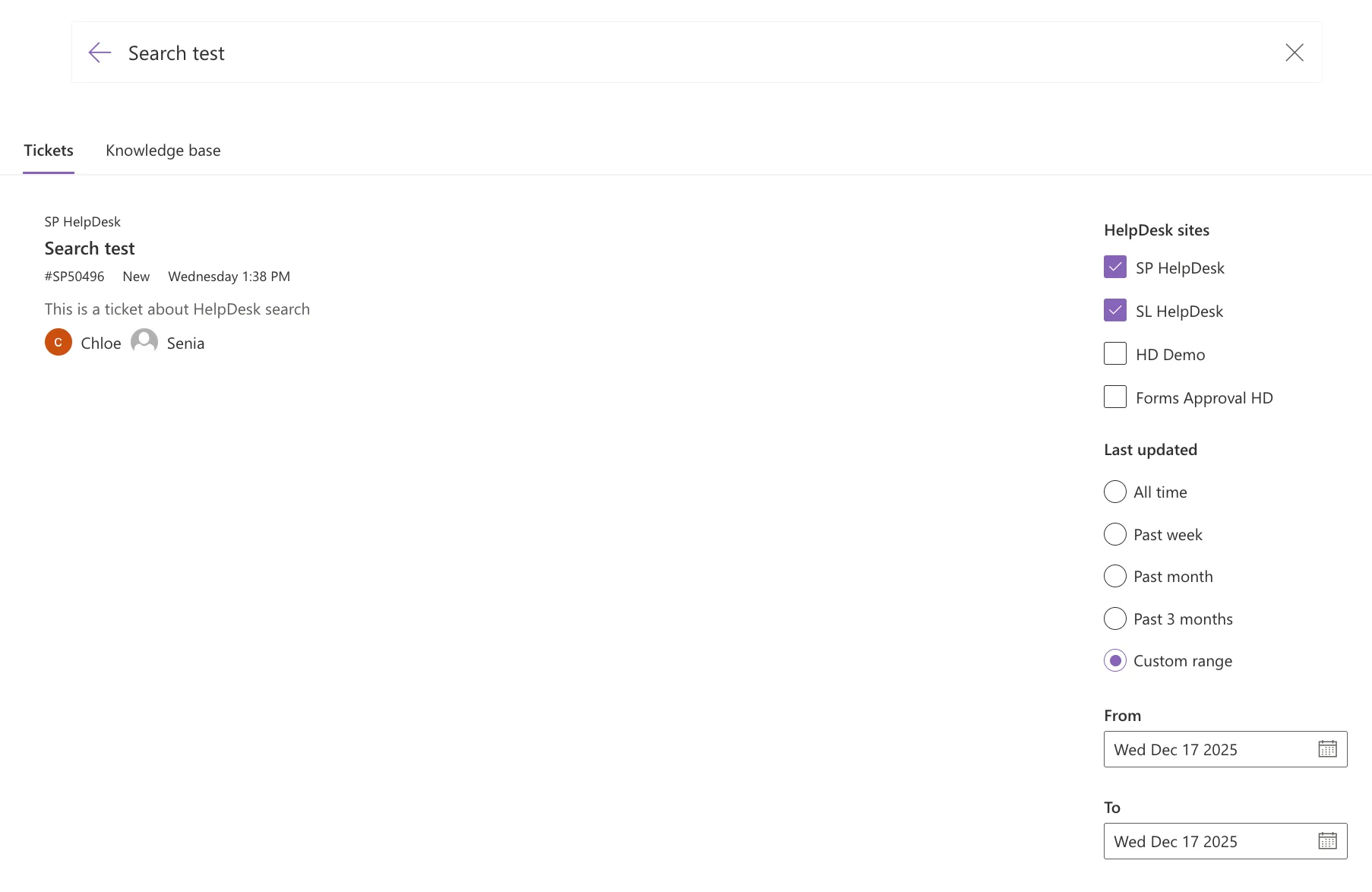
If you provide a Ticket ID and press Enter, you will be navigated to this ticket right away.
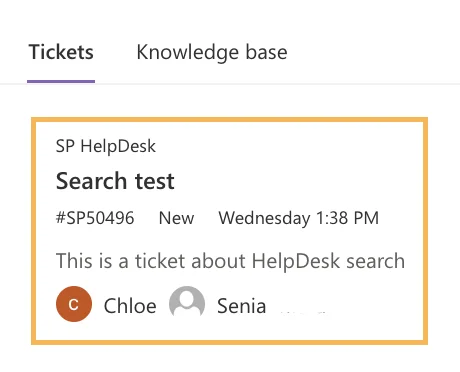
This is the information presented in the search result:
HelpDesk name at the top
Ticket title
Ticket ID
Status
Last modified date
People participating in the ticket - Requester, Assignee, CCs
Search options
These options help refine your search results and make it more effective.
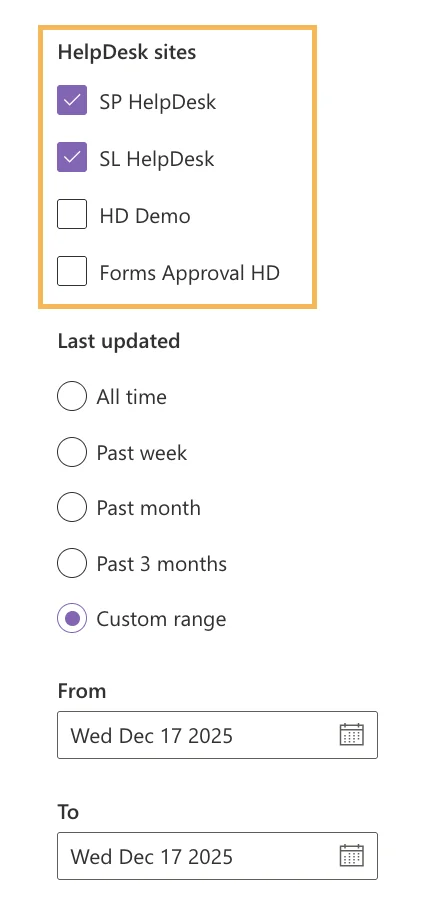
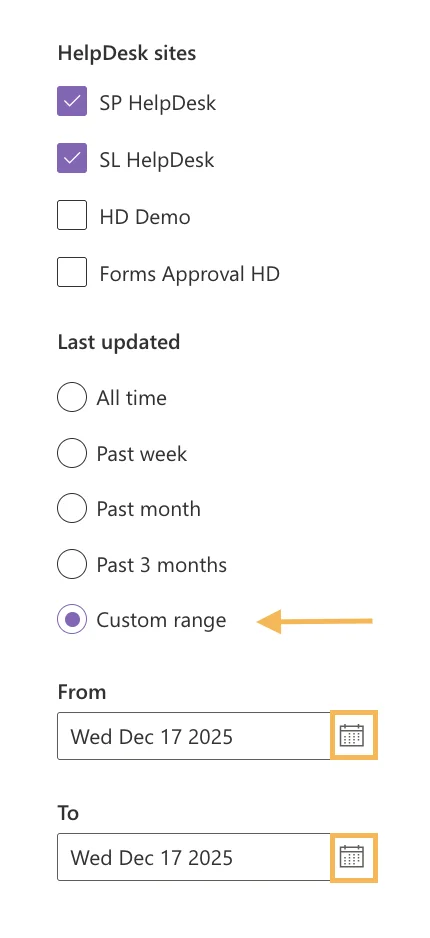
HelpDesk sites
In case you have multiple HelpDesk sites, there is the option to specify which sites to use for the search request.
By default, the search includes all available HelpDesks within the SharePoint domain.
Note
The search function works only for users with sufficient permissions to access the sites.
See our manage permissions documentation.
Last updated
You can define a specific time range for the search.
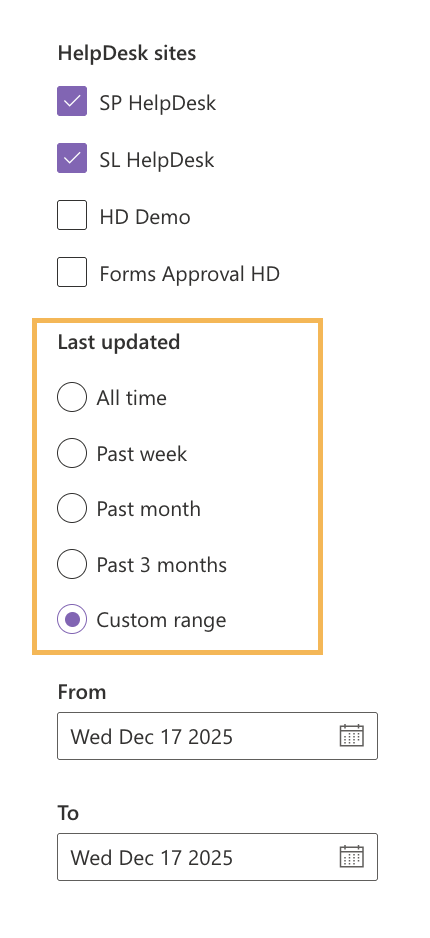
Custom range
The Custom range feature allows you to define the beginning and ending dates for the search interval.
Click on the calendar buttons to select the dates.
Search in Web Widget
When using the web widget, you can use the search box to quickly find tickets within your current view.
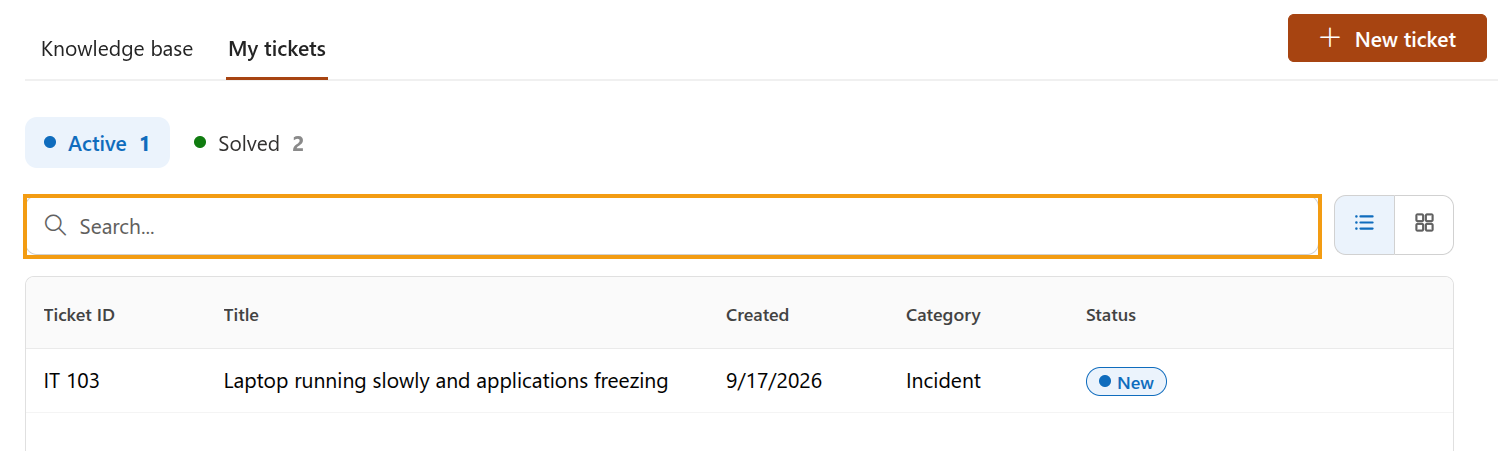
Search terms are matched against the following ticket attributes:
Ticket ID
Title
Status (display name)
First 100 characters of the last comment preview
Only these fields are searchable. Other fields remain non-searchable, regardless of whether they are included as display fields in the view.
Note
The searching option is not available when the view contains more than 1,000 tickets. While the search results are loading, more matching tickets may continue to appear in the list.